Knowledge Base
Setting up Email Signature in Roundcube
An email signature is a text block that is automatically added to the end of outgoing messages in Webmail. It typically includes details such as your name, contact information, and other relevant identifiers.
How to add a text-based email signature
- Access your Webmail.
- In the left menu, click Settings.
- Select Identities, then click on your email address.
- In the Signature box, enter your desired signature details, such as:
- Your name
- Your job title
- Company name
- Phone number
- Email address
- Click Save to apply your changes.
How to add an image to your email signature
- Access your Webmail.
- In the left menu, click Settings.
- Select Identities, then click on your email address.
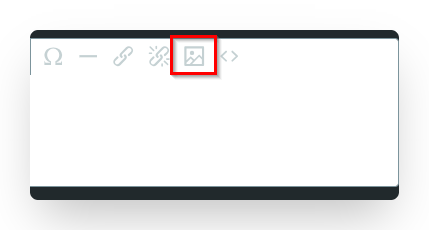
- In the Signature box, click the Image icon.
- Click the Source icon to upload your image.
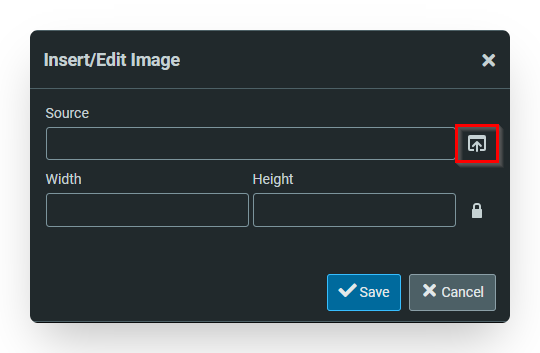
Note: The maximum file size for images is 64 KB.
- Select the image, adjust its width and height as needed, and click Save.
- Click Save to apply your changes.
Send a test email with your signature
After setting up your signature, send a test email to ensure it appears correctly.
- Text-based signature: Your signature will automatically appear in the email.
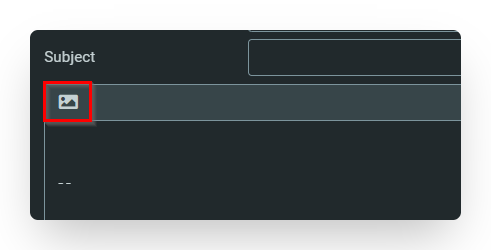
- Image-based signature: Click the Image icon to enable the image before sending your email.
Did you find this article helpful?