How to Set up Email Account on iPhone (iOS 13 and Up) & iPad
Easily configure your Vodien email on your iPhone (iOS 13 and up) or iPad using the built-in Mail app for quick, convenient access. Follow the simple steps below to get started in no time.
Adding Email Account to iPhone (iOS 13 and Up) or iPad Mail App
IMPORTANT. Before you start, ensure that you're connected to the internet and you have your email address and password handy. Some options may not be available as the setup interface may vary from one iOS version to another.
- Go to your Home Screen and tap Settings.
- Scroll down and select Mail.
- Select Accounts and click Add Account.
- Select “Other”.
- Under the “Mail” section, choose Add Mail Account.
- Enter Account Information.
- Name: Your display name
- Email: Your full email address
- Password: Your email account password
- Description: Any label (e.g., “Work Email”)
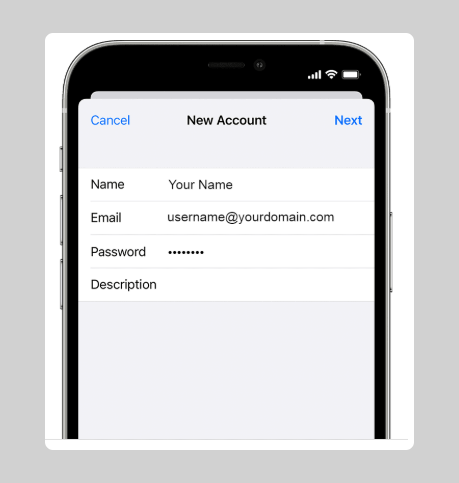
- Then tap Next.
- At the top, select IMAP or POP and enter Incoming & Outgoing Mail Server Info:
- Incoming Server: mail.mydomain.com (replace mydomain.com with your own domain name)
- Outgoing Server: Use the Outgoing Mail Server Name of your current Internet Server Provider (ISP)Or, use mail.mydomain.com (replace mydomain.com with your own domain name)
- Username: Your Full Email Address (Not optional, must be filled out)
- Password: Your Email Password
- Incoming Port: POP3 995 or IMAP 993
- Outgoing Mail Server (SMTP) Port: 465
- SSL: Yes
- SMTP Authentication:Required
- Secure Authentication or SPA:Needs to be turned off
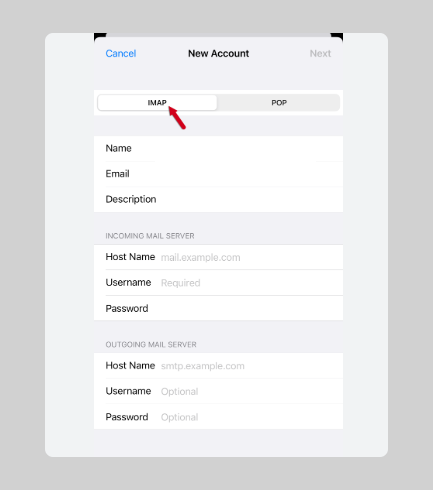
- Select Next when done and wait for Verification.
IMPORTANT.This process can take up to 15 minutes, depending on your internet speed. Just wait for the phone to process the information. If everything is correct, your phone will verify the settings and complete the setup. If not, double-check the server names and credentials.
- Select Save.
Congratulations! You've just added your email account to your iPhone or iPad. Now, you should be able to use it to manage your email account.
TIP: Send a test email to check if the email setup was successful. If you received the test email, your account is good to go.
For more details with Vodien Email Guide Setup, check this article.