How to view website Error logs in cPanel
cPanel allows you to view the latest 300 error log entries generated by your website. These logs provide helpful details that can assist in diagnosing and troubleshooting website issues.
This guide shows you how to access the Errors feature in cPanel and review your website's recent error logs.
Check website error logs in cPanel
- Access your cPanel.
- Go to the Metrics section, then click Errors.
- Review the website error logs. The page displays recent website error log entries in reverse chronological order.
Understanding the error logs
The page will display the recent website error log in reverse chronological order.
- Latest web server error log messages
Displays recent website and server errors from the /usr/local/apache/logs/error_log file.
- Latest suEXEC event log messages
Displays recent script execution and permission-related events from the /usr/local/apache/logs/suexec_log file.
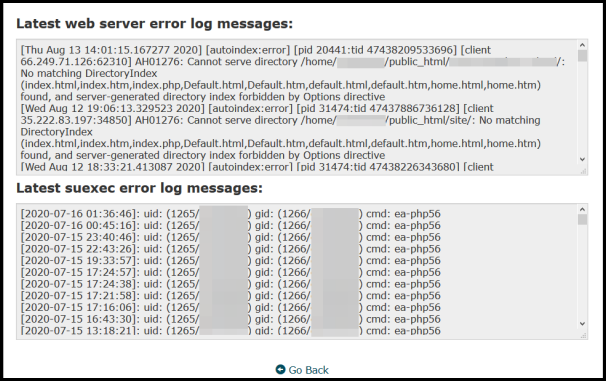

These two logs work together to help you troubleshoot website issues. For example, if a script returns a server error, the web server log may show the error itself, while the suEXEC log may provide additional details about the underlying cause, such as a permission or ownership issue.
You're all set!
Regularly reviewing these logs can help you quickly identify and troubleshoot website issues, making it easier to maintain your site's performance and reliability.