Knowledge Base
How To Update Magento Website URL
Changing website link might be necessary if you change your business name or if you bought a new domain name. There are two ways on how to change the Magento URL:
Via Magento Admin Page
This process is the easiest and most convenient as it doesn’t need your website hosting access. It only needs your Magento admin logins.
NOTE: These steps are only applicable to Magento users with administration access.
- Access your Magento admin page. Use the same admin URL set up during Magento installation.
- Log in using the username and password set up during Magento installation.

- Perform the Two-Factor Authentication.

- Click Stores on the menu bar on the left side of the page.

- Click the Configuration option.

- Click Web under General options.

- Enter the new website URL in the box provided under Base URLs.

- Enter the new website URL in the box provided under Secure Base URL.

- Click the Save Config button on the upper right side of the page to save the changes made.

Try accessing the website with the new URL. The changes should take effect right away.
Via PhpMyAdmin in cPanel
This process is applicable if you have access to your cPanel. Follow the steps below on how to change the Magento URL of your Magento website.
- Log in to cPanel.
- Click File Manager.
- Go to your Magento website files and locate the env.php file in the file path of app/etc/env.php.
- Right click on the file and select Edit.
- Click the Edit button.
- Scroll down to line 17 and take note of the value indicated on the right of the dbname (database name).

- Go back to cPanel homepage by going back to the previous tab.
- Scroll down to the icons under Databases and click phpMyAdmin.

- Click the database name that was obtained from Step 6.

- Click the table that ends with _core_config_data. The tables on each website can differ in prefix.
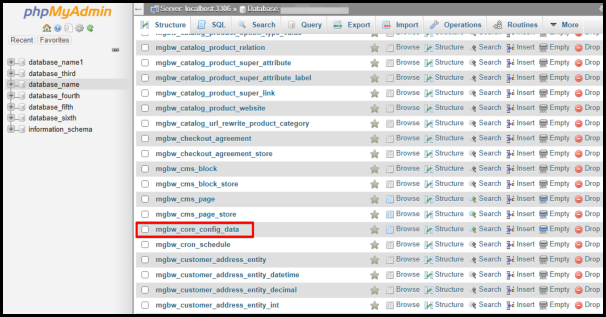
- Double-click the value of web/unsecure/base_url to edit the URL in the cell.

- Enter the new URL of your Magento website.

- Click anywhere outside the box to save the changes. A pop-up message shown in the screenshot below will indicate that the update has been saved.

Try accessing the website with the new URL. The changes should take effect right away.
Do not hesitate to contact our Singapore or Australia Support Team if you have further questions.
Did you find this article helpful?